Stop the WiFi Wars.
Start the ScreenPact.

Give your child a daily internet budget they can start, pause, and see while gaming. Stop policing, start negotiating.

Download for Windows

Patent pending • 14-day free trial • Windows 10 & 11 • Local-only • No account required

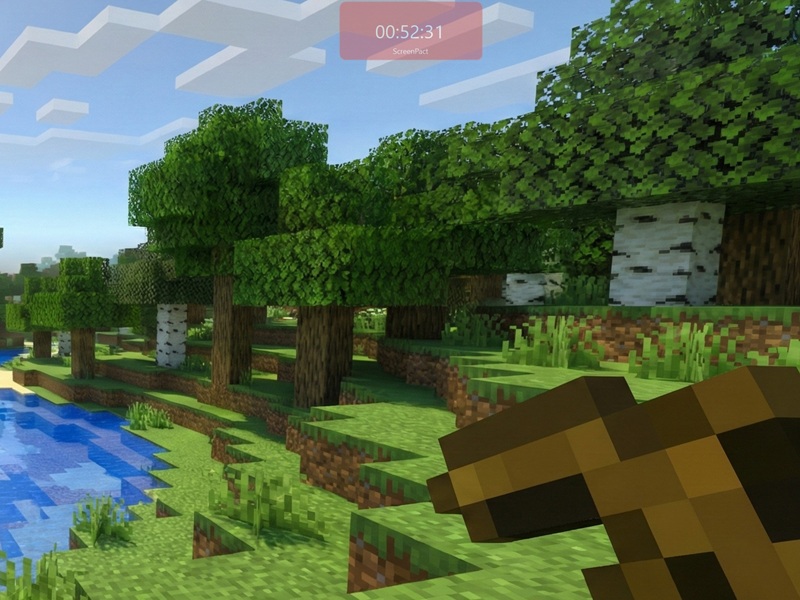
ScreenPact timer overlay shown in a Minecraft-style game

Constant Arguing

Spying, forced blocking, and the daily "just 5 more minutes" battle that ruins the evening.

Agreement & Trust

You agree on a budget. They control the switch. They learn responsibility, you get peace of mind.

How It Works

Everything you need to turn screen time into a lesson in budgeting.

Manual Toggle

The internet is OFF by default. Your child clicks "Start" when they are ready and "Pause" when they take a break. Pause immediately turns the internet off and saves the remaining budget.

Daily Budget

Set a fixed allowance, such as 2 hours. When the countdown reaches 0, internet access stops and the Start button locks until the next daily reset.

Local Session Log

See when sessions started, paused, and ended on the local PC. ScreenPact does not record websites, apps, screenshots, or browsing history.

No spying. Just an internet budget.

ScreenPact controls whether this Windows PC can reach the internet. It is not a surveillance dashboard.

How Access Is Controlled

ScreenPact temporarily changes the PC's network routing. It does not disable the physical Wi-Fi adapter, inspect traffic, or decide which websites are allowed.

Why Kids Still Feel Control

They choose when to spend the budget, but they cannot create extra time. When the day resets, the parent-approved budget automatically reloads.

Set Up in 5 Minutes

ScreenPact is built for ordinary family PCs: no cloud dashboard, no child account, and no complicated device management.

STEP 1

Install on Windows

Download the Windows installer and run ScreenPact on the child's PC.

STEP 2

Set the Parent Password

Protect settings so only a parent can change the daily limit or configuration.

STEP 3

Choose a Daily Budget

Pick a simple allowance, such as 2 hours of internet time per day.

STEP 4

Let Them Manage It

Your child clicks Start, pauses for breaks, and sees the remaining time on screen.

Privacy promise: ScreenPact stores settings and usage history locally on your PC. It does not upload browsing history, screenshots, or screen time logs to our servers.

Different From Traditional Parental Controls

ScreenPact is not trying to replace every family safety tool. It solves one painful moment: helping kids stop when their internet budget is gone.

Microsoft Family Safety

  • Parent-managed limits, approvals, and reports
  • Works best across Microsoft accounts and devices
  • Can feel like a remote control system to the child

ScreenPact

  • A visible daily internet budget on the Windows PC
  • The child chooses when to Start and Pause
  • No website tracking, app tracking, screenshots, or cloud dashboard
  • Built to teach self-management instead of starting another argument

From "Just 5 More Minutes" to Self-Discipline

Why ScreenPact Exists

The Problem

Every evening, our house turned into a zone of silent tension.

It always started the same way. Dinner was ready, but my son was glued to the screen. "Just 5 more minutes!" he'd plead. I'd say no. He'd beg. I'd threaten to pull the plug. Finally, I'd snap, cut the internet, and watch his world crumble. Then came the resentment, the sulking, and sometimes even tears. After a long, exhausting day at work, what was supposed to be the most relaxing and warm family moment turned into a ruined dinner with zero atmosphere. Day after day.

I knew there had to be a better way.

I started talking to other parents and found this struggle was universal. Even families using expensive "smart" blockers were still fighting the same battles. The software could block an app, but it couldn't solve the conflict. I researched online, consulted child psychology resources, and realized we were missing the most important piece of the puzzle: The child's perspective.

The Realization

So, I sat down and asked my son. I learned that he wasn't trying to be disobedient. He was just in a state of deep "flow," immersed in his world, genuinely unaware of how fast time was slipping away.

Then, it hit me.

I realized that the "hard chop" - cutting the WiFi or locking the device remotely - was the worst possible solution. By forcibly snatching that away, I wasn't teaching him time management; I was just proving that I was the powerful enemy.

We need to trust our kids. The solution wasn't to take control away, but to give it back.

The Solution

It took months of late nights to build a tool that actually respected a gamer's experience. The goal was simple: keep him aware of time without ruining his immersion. The result was a semi-transparent "Heads-Up Display" - a timer that floats over the game, putting the budget right in his view.

Version 1.0 was rough and admittedly a bit ugly, but it worked. It wasn't built to be a shiny product; it was built to restore order to our home.

The Result

When I installed it, he saw the new interface. He instantly felt the shift - the control was in his hands. After a few tries, he adapted immediately. He learned to start his session when he was ready, pause it when he needed a break, and manage his own budget.

The moment that changed everything.

One evening, I watched him from the doorway. The countdown showed 2 minutes left. Instead of panicking or begging, he calmly saved his game progress, closed the software, and shut his laptop. Then, he walked to the dinner table, smiling.

That moment hit me hard. It proved how shallow, arbitrary, and arrogant my old "hard disconnect" method had been. I had never truly stood in his shoes to understand his feelings or respect his choices.

Children are capable of managing their own time - if we give them the chance.

ScreenPact proved that if we respect them, they can surprise us with self-discipline. It worked for us, and the peace it brought to our home is priceless.

I truly hope you give it a try.

Start with a 14-day free trial ->

Ready to End the Battles?

Download ScreenPact for Windows. Early families are welcome to try it free and send feedback directly to the founder.

Start Free Trial Email the Founder

14-day free trial • No credit card required • Founder support for early users

Lifetime License

$29.99

Early users can try ScreenPact free first. If it helps your family, a one-time lifetime license keeps it on your PC and includes all v1.x updates.

Buy License Key

Looking for 10 Early Families

ScreenPact is being built by a parent and engineer. If your family is fighting the daily "just five more minutes" battle, you can try the software free and share what works, what is confusing, and what would make it safer for your home.

Join the Early Family Trial

Personal setup help is available for early users.

Frequently Asked Questions

Is ScreenPact patent pending?

Yes. ScreenPact is patent pending. The current version is Windows software, and a hardware version is in development for families who want screen time budgeting at the network level.

What exactly happens when time runs out?

ScreenPact temporarily changes the Windows routing table so the PC cannot reach the internet. Online games, video sites, Discord, and browsers lose access. Offline games and offline apps can still run.

Does installing it require administrator permission?

Yes, installation requires administrator permission one time. After setup, ScreenPact is designed for a child using a Standard User Windows account, so the daily budget cannot be casually changed or removed.

Will Windows show a SmartScreen warning?

It may during early releases because ScreenPact is an independent Windows app and is not yet digitally signed. The app has been submitted to Microsoft for download reputation review, and code signing is on the roadmap.

Does ScreenPact collect browsing history or screenshots?

No. ScreenPact is local-first. Settings, budgets, and usage records stay on your computer. The app does not upload browsing history, screenshots, or screen time logs.

What if I forget the parent password?

A valid license key can activate ScreenPact and reset the parent password. If you are an early trial family and get stuck, email support and the founder will help you recover access.

Can I try it before paying?

Yes. The Windows app includes a 14-day fully featured free trial and does not require a credit card to start.

Can my tech-savvy child bypass it?

ScreenPact is built to be resilient. If the process is killed, it automatically restarts within 5 seconds. Its core security relies on Windows permissions: if your child uses a 'Standard User' account (non-Administrator), it is extremely difficult to bypass or uninstall without your password. However, we ultimately believe in trust and negotiation, not an arms race.

Does it block specific games (like Roblox/Minecraft)?

No. ScreenPact manages the entire internet connection. When time is up, the internet stops. Offline games will still work, but YouTube, Roblox, Fortnite, and Discord will stop. This simplicity is why it works.

Does it work on Mac, iPad, or Phones?

Currently, ScreenPact is Windows PC only (Windows 10 & 11). This is where most serious gaming happens.

What if I'm not happy with it?

We offer a 14-day fully featured free trial, so you can test it before you pay. Plus, the lifetime license is a one-time purchase, no monthly subscriptions.