Check today’s state
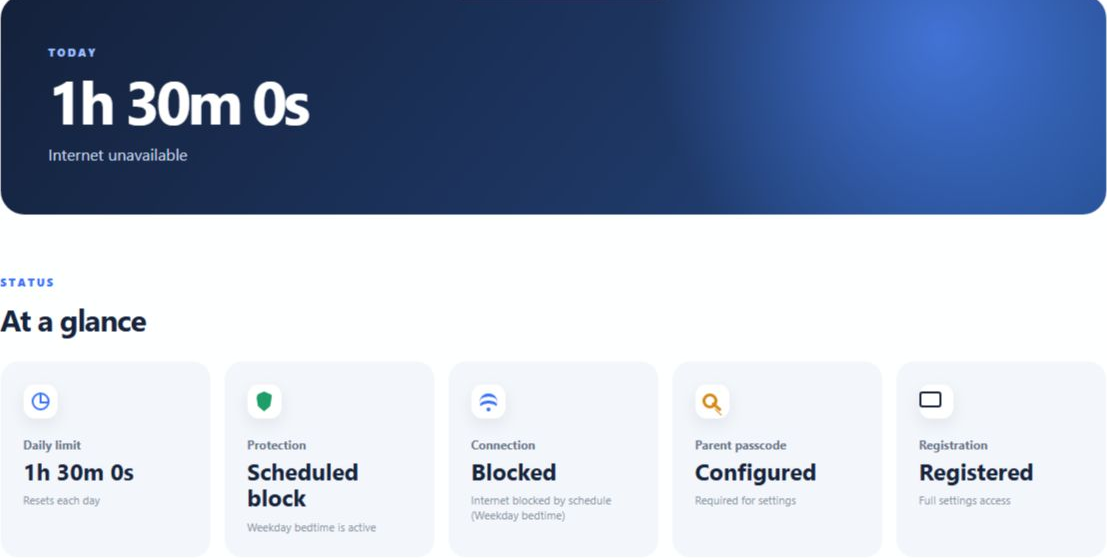
Open Dashboard from the tray. It reports the current allowance, whether Protection is enabled, connection state, passcode readiness and trial or registration status.
Understand ScreenPact’s blue, red and yellow button states during an ordinary family internet-time day.
Blue is ready, red is actively using internet time, and yellow means a session cannot start. Protection must stay On for the timer and schedules to apply.
The rules are already configured. Your child wants to go online, take a break for dinner and use the remaining time later without asking you to operate ScreenPact every time.
Open Dashboard from the tray. It reports the current allowance, whether Protection is enabled, connection state, passcode readiness and trial or registration status.
Before a session begins, the ScreenPact button is blue and says Start internet session. The child clicks the blue button when internet access is needed. The button then turns red, the remaining time begins counting down and internet access becomes available, unless a scheduled block is active.

A red button means the child is currently using internet time and the countdown is running. Before dinner, homework or leaving the PC, click the red button to pause. It returns to blue, external internet access pauses and the unused minutes remain available for later that day.

A yellow button means ScreenPact cannot start an internet session right now. Read it together with the remaining time:

Maybe your child finished a difficult chore without being asked: add a small +5 minute bonus. Maybe they already spent extra entertainment time watching television: use −5 minutes to keep the day balanced. Explain the reason aloud. This changes today only; tomorrow returns to the agreed weekday or weekend plan.

For a special occasion that needs unrestricted internet for a long period, the parent can open Parent Settings, enter the parent passcode and move the Protection switch to the left. The switch becomes gray, meaning Off. Dashboard then reports Bypass or Protection paused.
Protection Off is the highest-priority state. It bypasses the normal daily timer, the child’s Start/Pause control, zero remaining time, and any active school-time or bedtime schedule. The PC uses its normal Windows network connection.
Version 1.2.3 saves this choice. Restarting Windows does not turn Protection back on. When the exception ends, the parent must unlock Parent Settings, move the switch to the right until it is green, save and confirm Dashboard reports Enabled. All configured limits and schedules then resume automatically.
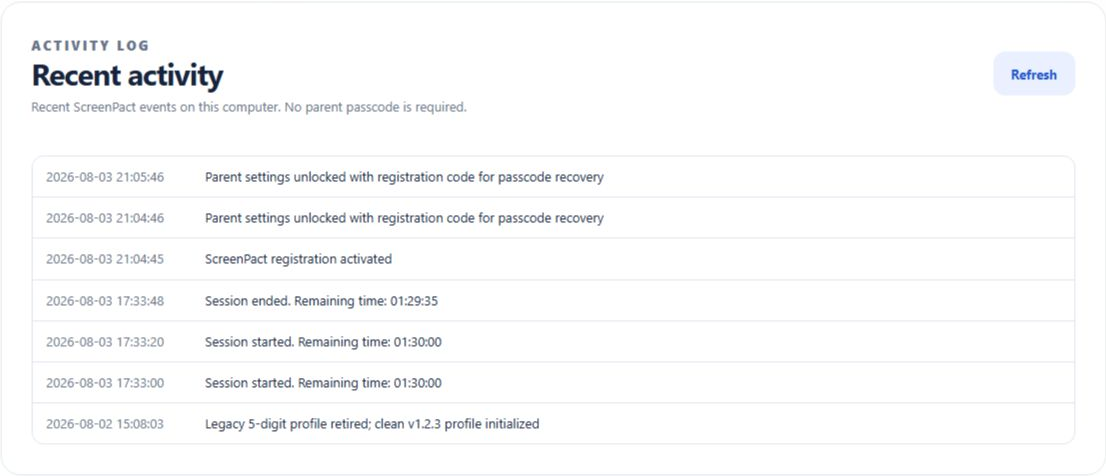
Open Activity Log from the tray to see recent ScreenPact actions. It does not list websites, apps or screenshots.