ScreenPact Help

Install ScreenPact on Windows

Install ScreenPact from the parent Administrator account, understand its .NET 8 prerequisites, network interruption and first parent setup.

Before you double-click Setup

Sign in as the parent Administrator, save online work, verify the official installer, and expect the PC’s network connection to change when the ScreenPact service starts.

A parent’s moment

The installer just downloaded

You want to install ScreenPact safely, then know exactly what to do next instead of being left at an unfamiliar tray icon.

1

Install from the parent Administrator account

Sign in to the parent’s Windows Administrator account. The child should use a separate Standard User account for everyday use. If the child is currently the only administrator, pause here and set up the accounts first.
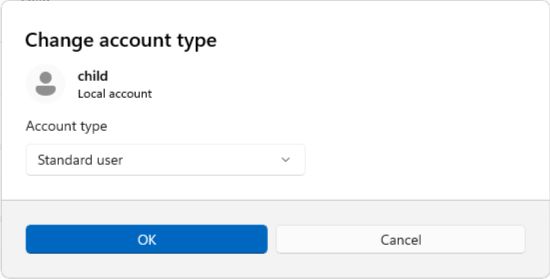
Windows account type showing the child account set to Standard user
2

Download safely—and save online work first

Start from the download page on screenpact.com and confirm that its button opens the official ScreenPact/ScreenPact GitHub release. Verify the published version, exact file name, file size and SHA-256 checksum before opening the installer.

Before you begin: prepare for a network interruption

Save cloud documents, finish video calls and pause important downloads. When Setup starts the ScreenPact Network Service, this PC’s internet connection may change or disconnect immediately. Keep this guide open on another device, or save an offline copy before installing.

3

Open the installer and approve Windows

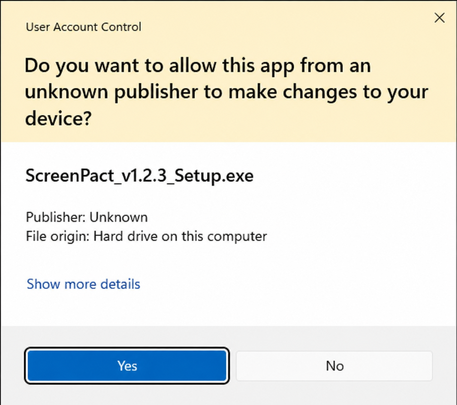
Double-click ScreenPact_v1.2.3_Setup.exe. Windows may show Unknown publisher because this early release is not yet digitally signed. Continue only if the file came from the official site and its checksum matches, then select Yes in User Account Control.

Windows User Account Control prompt for the ScreenPact installer
4

Let Setup install the required .NET components

ScreenPact needs both .NET 8 Desktop Runtime and ASP.NET Core 8 Runtime. Setup checks this PC automatically. If either component is missing, the bundled Microsoft runtime installer runs silently before the ScreenPact files are copied.

1Setup checksVersion 8.0.29 or newer
2Missing runtime installsQuietly, with no separate wizard
3Setup verifiesInstallation stops if verification fails

Keep the PC connected to power and do not close Setup while the status message says a runtime is being installed. This can take several minutes on a PC that does not already have .NET 8.

5

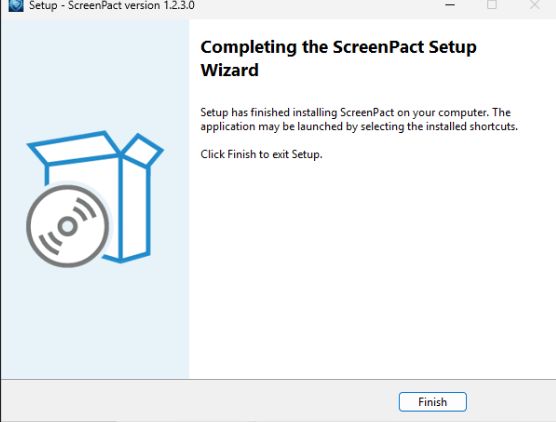
Finish Setup—and expect the network to change

Choose Install and wait until Setup confirms that ScreenPact was installed successfully. Near the end, Setup installs and starts the ScreenPact Network Service. The browser, streaming apps or other online programs may lose access at that moment.

What happens on different PCs?

On a brand-new profile, ScreenPact is designed to keep the network usable until the parent creates a passcode and explicitly enables Protection. On a reinstall, retained parent settings and an active time or schedule rule may be enforced as soon as the service starts. If the internet changes, finish Setup first—do not power off or repeatedly restart the installer.

ScreenPact Setup Wizard showing installation completed successfully
6

Open Parent Settings and finish the family setup

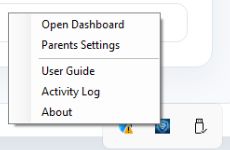
Open the hidden-icons arrow beside the Windows clock, right-click the ScreenPact icon and choose Parent Settings. Your browser opens a local page on 127.0.0.1; that address means this PC, not a cloud dashboard.

Create the private six-digit parent passcode, choose weekday and weekend limits, add any school or bedtime schedules, then decide when to enable Protection. ScreenPact saves each setting change automatically. Before handing the PC to your child, test Start, Pause and normal network recovery once.

ScreenPact system tray menu with Parent Settings highlighted
Continue directly to First-time setup →
!

Before handing the PC back to the child

Wait until the settings message says “Saved,” open Dashboard, test Start and Pause together, confirm the overlay counts down and verify that the child is signed in as a Standard User.