ScreenPact Help

Reset a forgotten parent passcode

Recover ScreenPact Parent Settings with the registered license key, or register the PC first if it has never been activated.

Recovery proves parent authority

ScreenPact never reveals the old passcode. A registered parent uses the purchase registration code to authorize a new six-digit passcode; an unregistered PC must be licensed first.

A parent’s moment

You forgot the six-digit code

ScreenPact cannot show the original passcode. A registered parent can use the registration code from the purchase email to create a new one. If the PC was never registered, a license must be purchased and activated before Parent Settings can be reopened.

1

Check whether this PC is registered

ScreenPact cannot display or recover the forgotten passcode because it was never stored as readable text. Access can be restored only with the registration code already associated with this PC—or by registering ScreenPact now if it was never activated.

2

Already registered: find the purchase email

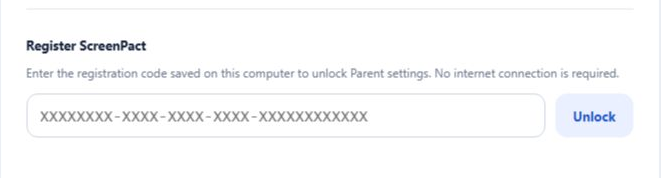
Open the email delivered after purchasing ScreenPact and copy the registration code. In Parent Settings, enter it under Register ScreenPact and choose Unlock. A successful match authorizes the parent to create a new passcode; it never reveals the old one.

Registered-license field and Unlock button for parent recovery
3

Never registered: purchase and activate a license

If this PC has never been registered, there is no recovery credential to prove parent authority. Purchase a ScreenPact lifetime license through the official link, then enter the new registration code on this PC. Without the original parent passcode or a valid registration code, Parent Settings cannot be reopened.

Buy a ScreenPact lifetime license →
ScreenPact lifetime-license purchase card
4

Create a new six-digit passcode

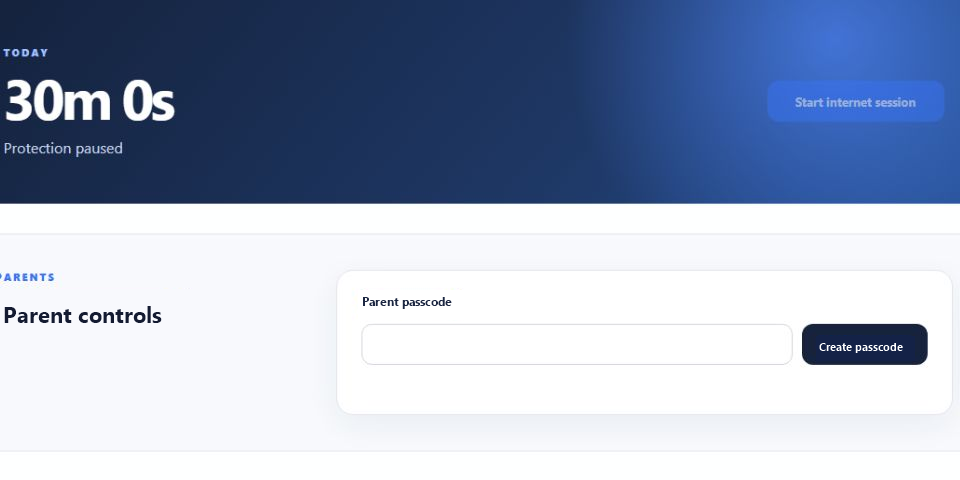
After the registration code is accepted, enter and confirm a new six-digit parent passcode. Avoid birthdays, sequences, repeated digits and any code the child knows. Reopen Parent Settings with the new code, then confirm Protection, time limits and schedules still match the family plan.

Create a new parent passcode after registration verification
!

There is no support bypass

Support cannot reveal the old passcode or unlock Parent Settings without valid parent authorization. Never send support your Windows password, parent passcode or full registration code.