ScreenPact Help

First-time setup

Create the six-digit parent passcode and define your family’s normal internet plan.

What success looks like

At the end of setup, the parent passcode is private, weekday and weekend limits are correct, optional schedules are saved, Protection is green and On, and one Start/Pause session has been tested with the child.

A parent’s moment

ScreenPact is installed—now what?

You are the parent at the child’s PC for the first time. Your goal is to create one understandable family rule, let ScreenPact save it, and prove it works before handing the PC back.

1

Begin with the family conversation

Before typing numbers, agree on the normal rule: how much internet time is reasonable on a school day, how weekends differ and which hours belong to sleep or school. ScreenPact enforces the agreement; it does not decide the agreement for you.
2

Create the parent passcode

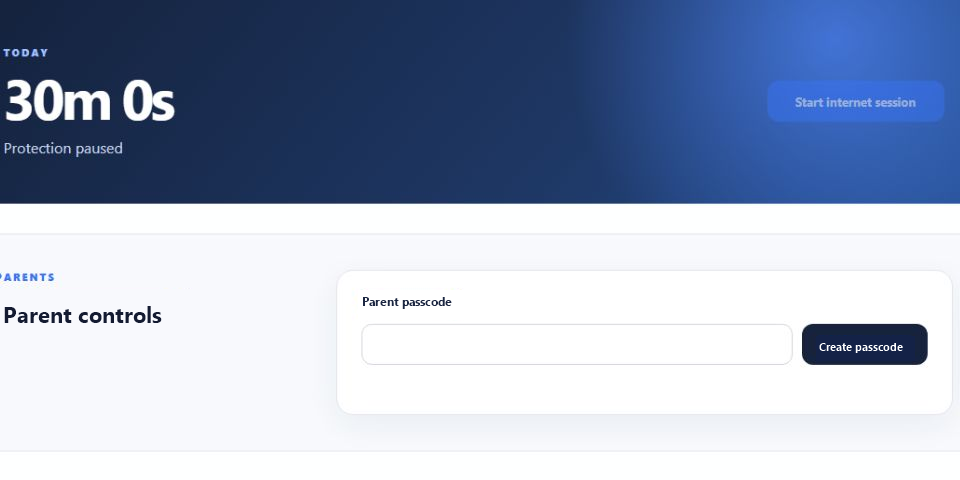
Enter exactly six digits and confirm them. This code is for ScreenPact settings—it does not replace the Windows password or PIN. Do not use a child’s birthday, repeated digits or a code the child already knows.

Create Parent Passcode screen
3

Set the weekday and weekend allowances

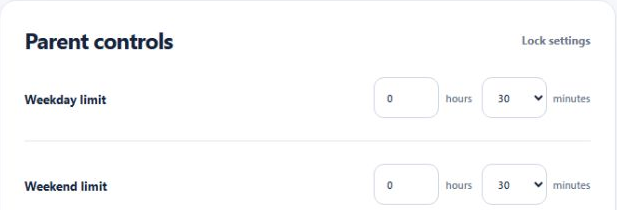
Set both parts of the normal family plan together. For Monday through Friday, choose the repeatable allowance that fits after schoolwork and responsibilities. Then choose the weekend allowance. ScreenPact selects the correct one automatically; you do not switch modes every Friday.

Weekday and weekend limits in Parent Settings
4

Add only the schedules you can explain

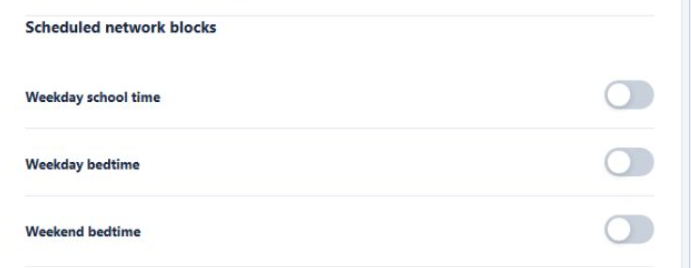
Use school time when the PC should not go online during study hours. Use weekday or weekend bedtime when sleep matters even if unused time remains. For overnight sleep, a range such as 22:00–08:00 crosses midnight.

Scheduled network block controls
5

Save and confirm the family plan

Choose Save changes, then keep the page open until ScreenPact confirms the settings were saved. Protection must be on for ScreenPact to enforce the daily timer and Start/Pause agreement. Before handing the PC to your child, confirm that Protection is enabled, the weekday and weekend allowances are correct, and any schedules match the family agreement.

Protection is the master daily-use switch

Green switch with the white knob on the right = On: ScreenPact follows the family settings. Gray switch with the knob on the left = Off: the normal timer is bypassed. Turning it off is a parent-only exception, not part of the child’s daily Start/Pause routine.

Save changes button
6

Practice one session together

Let the child press Start, watch the timer decrease for a minute, then press Pause. Explain that pausing saves time and also pauses external internet. This two-minute practice prevents the child from discovering the rule during a real game.

i

Keep the first plan boring—in a good way

Begin with one weekday limit, one weekend limit and perhaps bedtime. Once the family understands the timer, use today-only +5/−5 adjustments for exceptions instead of constantly rewriting the normal rule.