ScreenPact Help

Set up parent and child Windows accounts

Give the parent the authority to maintain the PC without giving everyday administrator control to the child.

The required account pattern

The parent uses a Windows Administrator account for installation and maintenance. The child uses a separate Standard User account every day—even when the PC belongs only to the child.

A parent’s moment

Before installing

Whether the PC is shared by the family or belongs to your child, the child should always use a Standard User account for everyday use. Keep a separate Administrator account for the parent to install ScreenPact and manage protected Windows settings.

1

Understand the two roles

Parent account

Administrator

Used to install ScreenPact, approve Windows security prompts, maintain the PC and make authorized recovery changes.

Child account

Standard User

Used for ordinary gaming, browsing and schoolwork without permission to casually install system software or change protected Windows settings.

This separation is a Windows security boundary, not merely a ScreenPact preference. Microsoft advises limiting administrator accounts because administrators have broad control over software, settings and files.
2

Make the parent account an Administrator

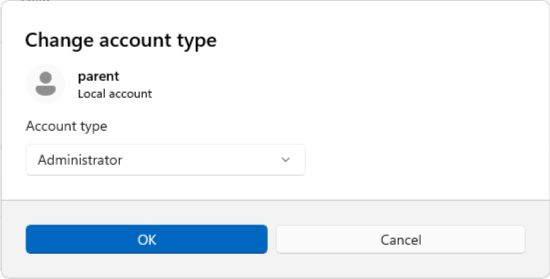
While signed in with an existing administrator account, open Settings → Accounts → Other users and expand the parent account. Choose Change account type, select Administrator, then choose OK. If the parent is already signed in, Settings → Accounts → Your info should also show Administrator beneath the account name.

3

Add a separate child account

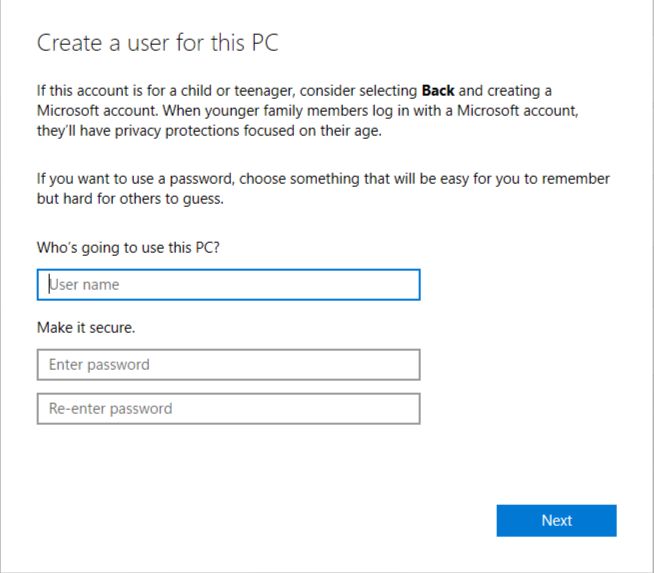
Open Settings → Accounts → Other users. Under Add other user, select Add account. You may add the child’s Microsoft account, create one, or choose I don’t have this person’s sign-in information → Add a user without a Microsoft account for a device-only local account.

A Microsoft account and a local account can both be Standard Users. ScreenPact cares about the Windows permission level, not which sign-in style your family chooses.

4

Make sure the child is a Standard User

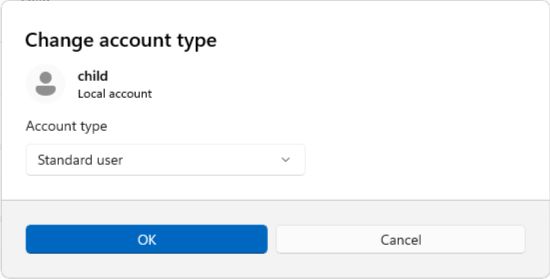
Still under Settings → Accounts → Other users, expand the child account and choose Change account type. Select Standard User, then choose OK.

5

Test the separation

Sign out of the parent account and sign in as the child. Confirm the child can open normal applications and use the browser. When Windows requests administrator approval for a system change, the child should not know the parent credentials.

6

Install and configure as the parent

Return to the parent Administrator account for installation and first configuration. After ScreenPact is tested, the child returns to the Standard User account for daily use.

What this setup can—and cannot—do

It can: stop ordinary child-account changes from casually overriding the family plan.

It cannot: protect the agreement if the child knows an administrator password, uses an administrator account, or another adult grants administrator approval.

Read Microsoft’s current account instructions →