ScreenPact Help

School and bedtime schedules

Automatically pause external internet during familiar routines.

Schedules need Protection On

School-time and bedtime schedules can block internet even while minutes remain, but only while the parent master Protection switch is On.

A parent’s moment

Some hours are not negotiable

While Protection is on, your child may still have time left but school, sleep or another family routine can take priority. A schedule creates that quiet boundary automatically.

1

Open Parent Settings and confirm Protection is on

Schedules are sensitive settings. Enter the parent passcode before changing or saving them, then confirm the Protection switch is green and On. Protection is the parent master switch: when it is Off, every schedule is bypassed even if its individual switch and times are saved.


2

Weekday school time

Use this for a Monday-to-Friday interval when the family PC should not reach the external internet.

Weekday school-time schedule switch with start and end times
3

Weekday bedtime

Use an overnight interval such as 22:00–07:00. The rule begins on a weekday evening and continues through the configured morning time.

Weekday bedtime schedule switch with overnight start and end times
4

Weekend bedtime

Set a separate Friday/Saturday-weekend routine when the sleep schedule differs.

Weekend bedtime schedule switch with overnight start and end times
5

Wait for automatic save, then verify

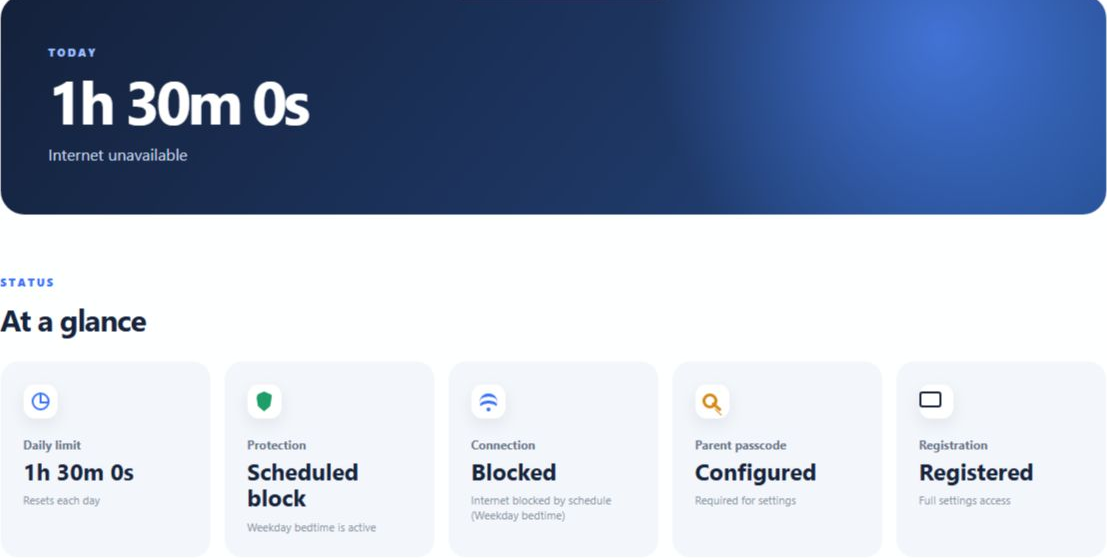
Schedule switches and times save automatically. Wait for the message to move from Waiting to save… to Saving… and finally Saved. When the schedule is active, Dashboard shows Scheduled block. Internet should recover automatically when the interval ends.

Scheduled block status on Dashboard
!

Use the Windows clock

Schedules depend on the PC’s date, time zone and clock. ScreenPact can require parent confirmation after a suspicious clock change.